Examples & Use Cases
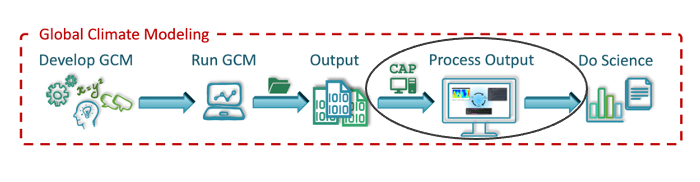
CAP is a Python toolkit designed to simplify post-processing and plotting MGCM output. CAP consists of five Python executables:
MarsPull→ accessing MGCM outputMarsFiles→ reducing the filesMarsVars→ performing variable operationsMarsInterp→ interpolating the vertical gridMarsPlot→ plotting MGCM output
The following exercises are organized into two parts by function.
Part I: File Manipulations → MarsFiles, MarsVars, & MarsInterp
Part II: Plotting with CAP → MarsPlot
Note
This does not cover MarsPull.
Table of Contents
Part I: File Manipulations - 1. MarsPlot’s Inspect Function - 2. Editing Variable Names and Attributes - 3. Splitting Files in Time - 4. Deriving Secondary Variables - 5. Time-Shifting Diurn Files - 6. Pressure-Interpolating the Vertical Axis
Part II: Plotting with CAP - Step 1: Creating the Template (Custom.in) - Step 2: Editing Custom.in - Step 3: Generating the Plots
Custom Set 2 of 4: Global Mean Column-Integrated Dust Optical Depth Over Time
Activating CAP
Activate the amescap virtual environment to use CAP:
(local)~$ source ~/amescap/bin/activate
(amescap)~$
Confirm that CAP’s executables are accessible by typing [-h --help], which prints documentation for the executable to the terminal:
(amescap)~$ MarsVars -h
Now that we know CAP is configured, make a copy of the file amescap_profile in your home directory, and make it a hidden file:
(amescap)~$ cp ~/amescap/mars_templates/amescap_profile ~/.amescap_profile
CAP stores useful settings in amescap_profile. Copying it to our home directory ensures it is not overwritten if CAP is updated or reinstalled.
Part I covers file manipulations. Some exercises build off of previous exercises so it is important to complete them in order. If you make a mistake or get behind in the process, you can go back and catch up during a break or use the provided answer key before continuing on to Part II.
Part II demonstrates CAP’s plotting routine. There is more flexibility in this part of the exercise.
Return to Table of Contents
Part I: File Manipulations
CAP has dozens of post-processing capabilities. We will go over a few of the most commonly used functions in this tutorial. We will cover:
Interpolating data to different vertical coordinate systems (
MarsInterp)Adding derived variables to the files (
MarsVars)Time-shifting data to target local times (
MarsFiles)Trimming a file to reduce its size (
MarsFiles).
The required MGCM output files are already loaded in the cloud environment under tutorial_files/cap_exercises/. Change to that directory and look at the contents:
(amescap)~$ cd tutorial_files/cap_exercises
(amescap)~$ ls
03340.atmos_average.nc  03340.backup.zip
03340.atmos_diurn.nc    03340.fixed.nc
The three MGCM output files have a 5-digit sol number appended to the front of the file name. The sol number indicates the day that a file’s record begins. These contain output from the sixth year of a simulation. The zipped file is an archive of these three output files in case you need it.
Note
The output files we manipulate in Part I will be used to generating plots in Part II so do not delete any file you create!
1. MarsPlot’s Inspect Function
The inspect function is part of MarsPlot and it prints netCDF file contents to the screen. To use it on the average file, 03340.atmos_average.nc, type the following in the terminal:
(amescap)~$ MarsPlot -i 03340.atmos_average.nc
Note
This is a good time to remind you that if you are unsure how to use a function, invoke the [-h --help] argument with any executable to see its documentation (e.g., MarsPlot -h).
Return to Part I: File Manipulations
2. Editing Variable Names and Attributes
In the previous exercise, [-i --inspect] revealed a variable called opac in 03340.atmos_average.nc. opac is dust opacity per pascal and it is similar to another variable in the file, dustref, which is opacity per (model) level. Let’s rename opac to dustref_per_pa to better indicate the relationship between these variables.
We can modify variable names, units, longnames, and even scale variables using the [-edit --edit] function in MarsVars. The syntax for editing the variable name is:
(amescap)~$ MarsVars 03340.atmos_average.nc -edit opac -rename dustref_per_pa
03340.atmos_average_tmp.nc was created
03340.atmos_average.nc was updated
We can use [-i --inspect] again to confirm that opac was renamed dustref_per_pa:
(amescap)~$ MarsPlot -i 03340.atmos_average.nc
The [-i --inspect] function can also print a summary of the values of a variable to the screen using [-stats --statistics]. For example:
(amescap)~$ MarsPlot -i 03340.atmos_average.nc -stats dustref_per_pa
_________________________________________________________
  VAR           |   MIN     |    MEAN     |    MAX      |
________________|___________|_____________|_____________|
  dustref_per_pa|          0|  0.000384902|    0.0017573|
________________|___________|_____________|_____________|
Finally, [-i --inspect] can print the values of a variable to the screen using [-values --print_values]. For example:
(amescap)~$ MarsPlot -i 03340.atmos_average.nc -values lat
lat=
[-89. -87. -85. -83. -81. -79. -77. -75. -73. -71. -69. -67. -65. -63.
 -61. -59. -57. -55. -53. -51. -49. -47. -45. -43. -41. -39. -37. -35.
 -33. -31. -29. -27. -25. -23. -21. -19. -17. -15. -13. -11.  -9.  -7.
  -5.  -3.  -1.   1.   3.   5.   7.   9.  11.  13.  15.  17.  19.  21.
  1.   25.  27.  29.  31.  33.  35.  37.  39.  41.  43.  45.  47.  49.
  2.   53.  55.  57.  59.  61.  63.  65.  67.  69.  71.  73.  75.  77.
  3.   81.  83.  85.  87.  89.]
Return to Part I: File Manipulations
3. Splitting Files in Time
Next we’re going to trim the diurn and average files by Ls. We’ll create files that only contain data around southern summer solstice, Ls=270. This greatly reduces the file size to make our next post-processing steps more efficient.
Syntax for trimming files by Lsuses [-split --split]:
(amescap)~$ MarsFiles 03340.atmos_diurn.nc -split 265 275
...
/home/centos/tutorial_files/cap_exercises/03847.atmos_diurn_Ls265_275.nc was created
(amescap)~$ MarsFiles 03340.atmos_average.nc -split 265 275
...
/home/centos/tutorial_files/cap_exercises/03847.atmos_average_Ls265_275.nc was created
The trimmed files have the appendix _Ls265_275.nc and the simulation day has changed from 03340 to 03847 to reflect that the first day in the file has changed.
For future steps, we need a fixed file with the same simulation day number as the files we just created, so make a copy of the fixed file and rename it:
(amescap)~$ cp 03340.fixed.nc 03847.fixed.nc
Return to Part I: File Manipulations
4. Deriving Secondary Variables
The [-add --add_variable] function in MarsVars derives and adds secondary variables to MGCM output files provided that the variable(s) required for the derivation are already in the file. We will add the meridional mass streamfunction (msf) to the trimmed average file. To figure out what we need in order to do this, use the [-h --help] function on MarsVars:
(amescap)~$ MarsVars -h
The help function shows that streamfunction (msf) requires two things: that the meridional wind (vcomp) is in the average file, and that the average file is *pressure-interpolated*.
First, confirm that vcomp is in 03847.atmos_average_Ls265_275.nc using [-i --inspect]:
(amescap)~$ MarsPlot -i 03847.atmos_average_Ls265_275.nc
...
vcomp : ('time', 'pfull', 'lat', 'lon')= (3, 56, 90, 180), meridional wind  [m/sec]
Second, pressure-interpolate the average file using MarsInterp. The call to MarsInterp requires:
The interpolation type (
[-t --interp_type]), we will use standard pressure coorindates (pstd)The grid to interpolate to (
[--v --vertical_grid]), we will use the default pressure grid (pstd_default)
Note
All interpolation types are listed in the [-h --help] documentation for MarsInterp. Additional grids are listed in ~/.amescap_profile, which accepts user-input grids as well.
We will also specify that only temperature (temp), winds (ucomp and vcomp), and surface pressure (ps) are to be included in this new file using [-incl --include]. This will reduce the interpolated file size.
Finally, add the [-print --print_grid] flag at the end of prompt to print out the standard pressure grid levels that we are interpolating to:
(amescap)~$ MarsInterp 03847.atmos_average_Ls265_275.nc -t pstd -v pstd_default -incl temp ucomp vcomp ps -print
1100.0 1050.0 1000.0 950.0 900.0 850.0 800.0 750.0 700.0 650.0 600.0 550.0 500.0 450.0 400.0 350.0 300.0 250.0 200.0 150.0 100.0 70.0 50.0 30.0 20.0 10.0 7.0 5.0 3.0 2.0 1.0 0.5 0.3 0.2 0.1 0.05
To perform the interpolation, simply omit the [-print --print_grid] flag:
(amescap)~$ MarsInterp 03847.atmos_average_Ls265_275.nc -t pstd -v pstd_default -incl temp ucomp vcomp ps
...
/home/centos/tutorial_files/cap_exercises/03847.atmos_average_Ls265_275_pstd.nc was created
Now we have a pressure-interpolated average file with vcomp in it. We can derive and add msf to it using [-add --add_variable] from MarsVars:
(amescap)~$ MarsVars 03847.atmos_average_Ls265_275_pstd.nc -add msf
Processing: msf...
msf: Done
Return to Part I: File Manipulations
5. Time-Shifting Diurn Files
The diurn file is organized by time-of-day assuming *universal* time starting at the Martian prime meridian. The time-shift [-t --time_shift] function interpolates the diurn file to *uniform local* time. This is especially useful when comparing MGCM output to satellite observations in fixed local time orbit.
Time-shifting can only be done on files with a local time dimension (time_of_day_24, i.e. diurn files). By default, MarsFiles time shifts all of the data in the file to 24 uniform local times and this generates very large files. To reduce file size and processing time, we will time-shift the data only to the local times we are interested in: 3 AM and 3 PM.
Time-shift the temperature (temp) and surface pressure (ps) in the trimmed diurn file to 3 AM / 3 PM local time like so:
(amescap)~$ MarsFiles 03847.atmos_diurn_Ls265_275.nc -t '3. 15.' -incl temp ps
...
/home/centos/tutorial_files/cap_exercises/03847.atmos_diurn_Ls265_275_T.nc was created
A new diurn file called 03847.atmos_diurn_Ls265_275_T.nc is created. Use [-i --inspect] to confirm that only ps and temp (and their dimensions) are in the file and that the time_of_day dimension has a length of 2:
(amescap)~$ MarsPlot -i 03847.atmos_diurn_Ls265_275_T.nc
...
====================CONTENT==========================
time           : ('time',)= (3,), sol number  [days since 0000-00-00 00:00:00]
time_of_day_02 : ('time_of_day_02',)= (2,), time of day  [[hours since 0000-00-00 00:00:00]]
pfull          : ('pfull',)= (56,), ref full pressure level  [mb]
scalar_axis    : ('scalar_axis',)= (1,), none  [none]
lon            : ('lon',)= (180,), longitude  [degrees_E]
lat            : ('lat',)= (90,), latitude  [degrees_N]
areo           : ('time', 'time_of_day_02', 'scalar_axis')= (3, 2, 1), areo  [degrees]
ps             : ('time', 'time_of_day_02', 'lat', 'lon')= (3, 2, 90, 180), surface pressure  [Pa]
temp           : ('time', 'time_of_day_02', 'pfull', 'lat', 'lon')= (3, 2, 56, 90, 180), temperature  [K]
=====================================================
Return to Part I: File Manipulations
6. Pressure-Interpolating the Vertical Axis
Now we can efficiently interpolate the diurn file to the standard pressure grid. Recall that interpolation is part of MarsInterp and requires:
Interpolation type (
[-t --interp_type]), andGrid (
[-v --vertical_grid])
As before, we will interpolate to standard pressure (pstd) using the default pressure grid in .amesgcm_profile (pstd_default):
(amescap)~$ MarsInterp 03847.atmos_diurn_Ls265_275_T.nc -t pstd -v pstd_default
...
/home/centos/tutorial_files/cap_exercises/03847.atmos_diurn_Ls265_275_T_pstd.nc was created
Note
Interpolation could be done before or after time-shifting, the order does not matter.
We now have four different diurn files in our directory:
03340.atmos_diurn.nc                  # Original MGCM file
03847.atmos_diurn_Ls265_275.nc        # + Trimmed to L$_s$=240-300
03847.atmos_diurn_Ls265_275_T.nc      # + Time-shifted; `ps` and `temp` only
03847.atmos_diurn_Ls265_275_T_pstd.nc # + Pressure-interpolated
CAP always adds an appendix to the name of any new file it creates. This helps users keep track of what was done and in what order. The last file we created was trimmed, time-shifted, then pressure-interpolated. However, the same file could be generated by performing the three functions in any order.
Return to Part I: File Manipulations
Part II
This part of the CAP Practical covers how to generate plots with CAP. We will take a learn-by-doing approach, creating five sets of plots that demonstrate some of CAP’s most often used plotting capabilities:
Plotting with CAP is done in 3 steps:
Step 1: Creating the Template (Custom.in)
As in Part I, we will go through these steps together.
Part II: Plotting with CAP
CAP’s plotting routine is MarsPlot. It works by generating a Custom.in file containing seven different plot templates that users can modify, then reading the Custom.in file to make the plots.
The plot templates in Custom.in include:
Plot Type |
X, Y Dimensions |
Name in |
|---|---|---|
Map |
Longitude, Latitude |
|
Time-varying |
Time, Latitude |
|
Time-varying |
Time, level |
|
Time-varying |
Longitude, Time |
|
Cross-section |
Longitude, Level |
|
Cross-section |
Latitude, Level |
|
Line plot (1D) |
Dimension*, Variable |
|
Note
Dimension is user-indicated and could be time (time), latitude (lat), longitude lon, or level (pfull, pstd, zstd, zagl).
Additionally, MarsPlot supports:
PDF & image format
Landscape & portrait mode
Multi-panel plots
Overplotting
Customizable axes dimensions and contour intervals
Adjustable colormaps and map projections
and so much more. You will learn to plot with MarsPlot by following along with the demonstration. We will generate the Custom.in template file, customize it, and pass it back into MarsPlot to create plots.
Return to Part II
Step 1: Creating the Template (Custom.in)
Generate the template file using [-template --generate_template], Custom.in:
(amescap)~$ MarsPlot -template
/home/centos/tutorial_files/cap_exercises/Custom.in was created
A new file called Custom.in is created in your current working directory.
Step 2: Editing Custom.in
Open Custom.in using vim:
(amescap)~$ vim Custom.in
Scroll down until you see the first two templates shown in the image below:
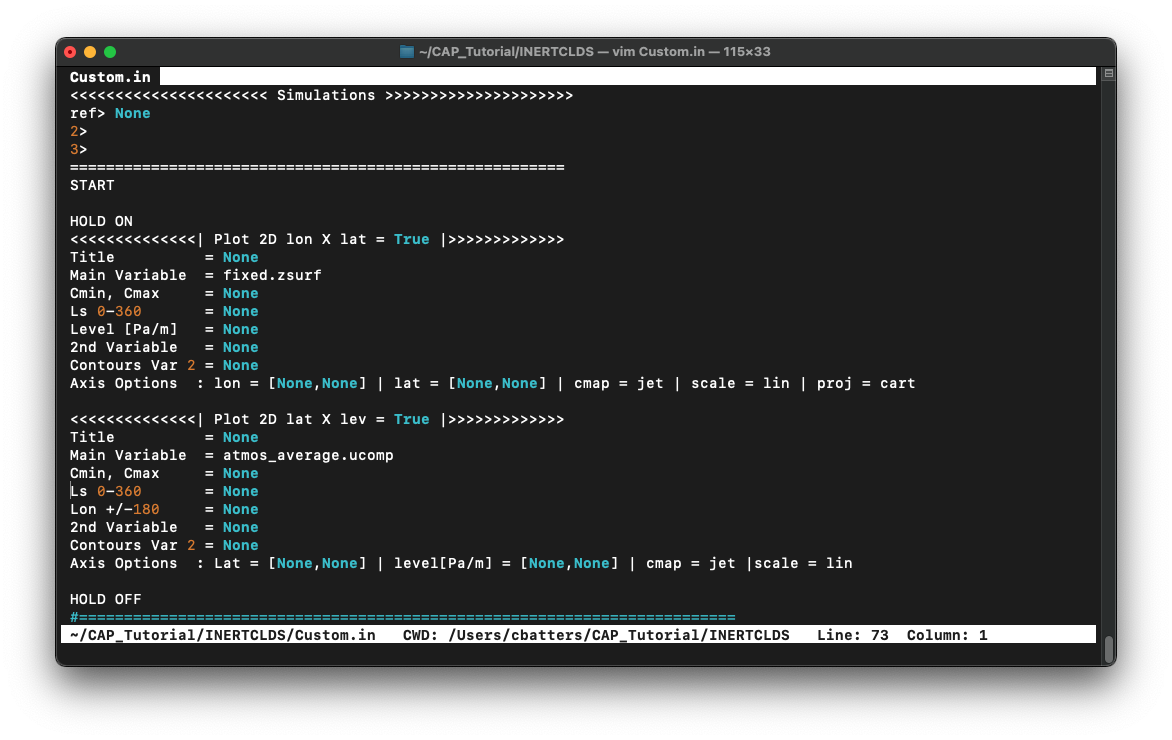
Since all of the templates have a similar structure, we can broadly describe how Custom.in works by going through the templates line-by-line.
Line 1
# Line 1                ┌ plot type  ┌ whether to create the plot
<<<<<<<<<<<<<<| Plot 2D lon X lat = True |>>>>>>>>>>>>>
Line 1 indicates the plot type and whether to create the plot when passed into MarsPlot.
Line 2
# Line 2         ┌ title
Title          = None
Line 2 is where we set the plot title.
Line 3
# Line 3         ┌ file ┌ variable
Main Variable  = fixed.zsurf          # file.variable
Main Variable  = [fixed.zsurf]/1000   # [] brackets for mathematical operations
Main Variable  = diurn_T.temp{tod=3}  # {} brackets for dimension selection
Line 3 indicates the variable to plot and the file from which to pull the variable.
Additional customizations include:
Element-wise operations (e.g., scaling by a factor)
Dimensional selection (e.g., selecting the time of day (
tod) at which to plot from a time-shifted diurn file)
Line 4
# Line 4
Cmin, Cmax     = None           # automatic, or
Cmin, Cmax     = -4,5           # contour limits, or
Cmin, Cmax     = -4,-2,0,1,3,5  # explicit contour levels
Line 4 line defines the color-filled contours for Main Variable. Valid inputs are:
None(default) enables Python’s automatic interpretation of the contoursmin,maxspecifies contour rangeX,Y,Z,...,Ngives explicit contour levels
Lines 5 & 6
# Lines 5 & 6
Ls 0-360       = None # for 'time' free dimension
Level Pa/m     = None # for 'pstd' free dimension
Lines 5 & 6 handle the free dimension(s) for Main Variable (the dimensions that are *not* plot dimensions).
For example, temperature has four dimensions: (time, pstd, lat, lon). For a 2D lon X lat map of temperature, lon and lat provide the x and y dimensions of the plot. The free dimensions are then pstd (Level Pa/m) and time (Ls 0-360).
Lines 5 & 6 accept four input types:
integerselects the closest valuemin,maxaverages over a range of the dimensionallaverages over the entire dimensionNone(default) depends on the free dimension:
# ┌ free dimension  ┌ default setting
Ls 0-360       = None   # most recent timestep
Level Pa/m     = None   # surface level
Lon +/-180     = None   # zonal mean over all longitudes
Latitude       = None   # equatorial values only
Lines 7 & 8
# Line 7 & 8
2nd Variable   = None           # no solid contours
2nd Variable   = fixed.zsurf    # draw solid contours
Contours Var 2  = -4,5          # contour range, or
Contours Var 2  = -4,-2,0,1,3,5 # explicit contour levels
Lines 7 & 8 (optional) define the solid contours on the plot. Contours can be drawn for Main Variable or a different 2nd Variable.
Like
Main Variable,2nd Variableminimally requiresfile.variableLike
Cmin, Cmax,Contours Var 2accepts a range (min,max) or list of explicit contour levels (X,Y,Z,...,N)
Line 9
# Line 9        ┌ X axes limit      ┌ Y axes limit      ┌ colormap   ┌ cmap scale  ┌ projection
 Axis Options : lon = [None,None] | lat = [None,None] | cmap = jet | scale = lin | proj = cart
Finally, Line 9 offers plot customization (e.g., axes limits, colormaps, map projections, linestyles, 1D axes labels).
Return to Part II
Step 3: Generating the Plots
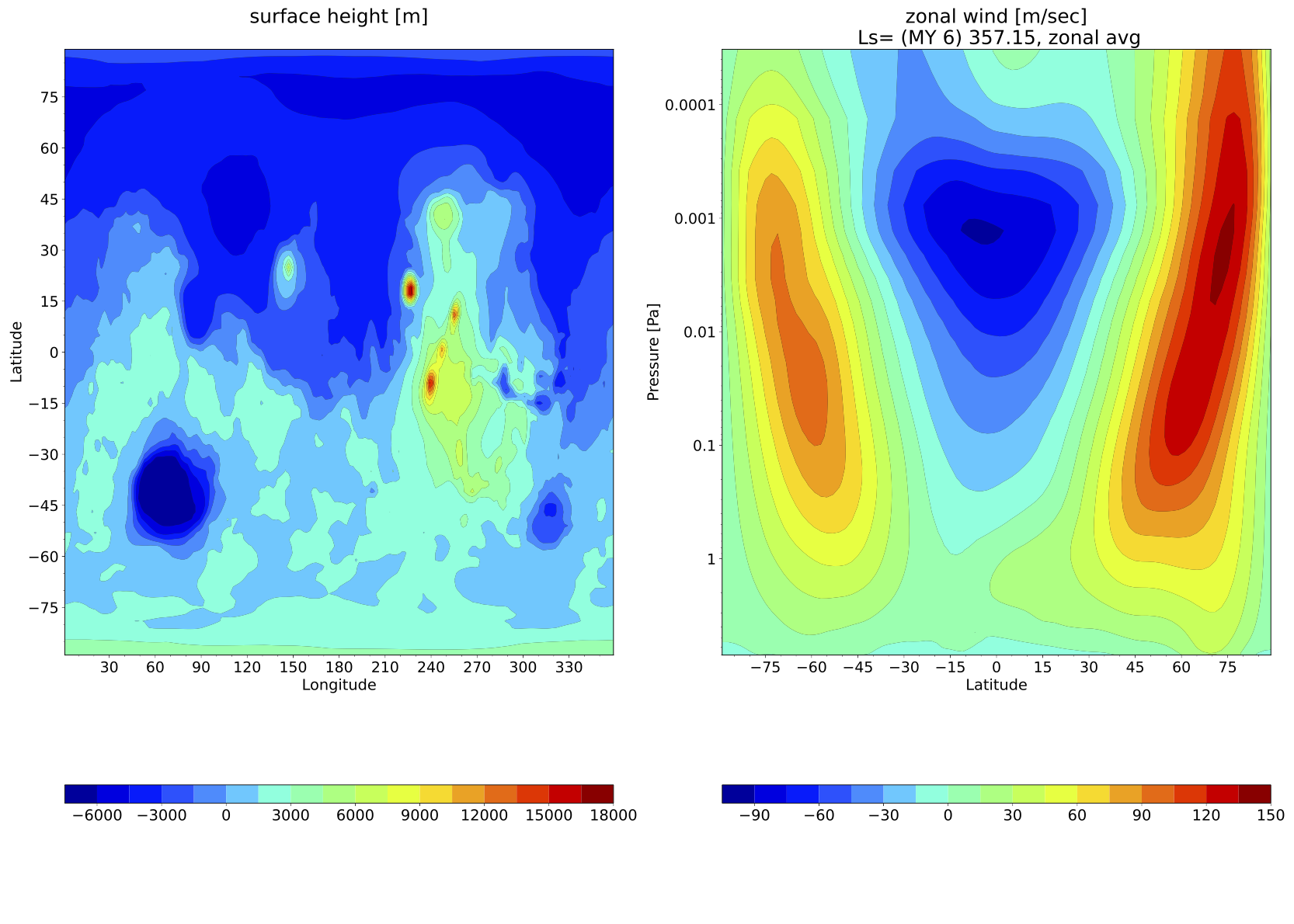
Generate the plots set to True in Custom.in by saving and quitting the editor (:wq) and then passing the template file to MarsPlot. The first time we do this, we’ll pass the [-d --date] flag to specify that we want to plot from the 03340 average and fixed files:
(amescap)~$ MarsPlot Custom.in -d 03340
Plots are created and saved in a file called Diagnostics.pdf.
Summary
Plotting with MarsPlot is done in 3 steps:
(amescap)~$ MarsPlot -template # generate Custom.in
(amescap)~$ vim Custom.in # edit Custom.in
(amescap)~$ MarsPlot Custom.in # pass Custom.in back to MarsPlot
Now we will go through some examples.
Customizing the Plots
Open Custom.in in the editor:
(amescap)~$ vim Custom.in
Copy the first two templates that are set to True and paste them below the line Empty Templates (set to False). Then, set them to False. This way, we have all available templates saved at the bottom of the script.
We’ll preserve the first two plots, but let’s define the sol number of the average and fixed files in the template itself so we don’t have to pass the [-d --date] argument every time:
# for the first plot (lon X lat topography):
Main Variable  = 03340.fixed.zsurf
# for the second plot (lat X lev zonal wind):
Main Variable  = 03340.atmos_average.ucomp
Now we can omit the date ([-d --date]) when we pass Custom.in to MarsPlot.
Custom Set 1 of 4: Zonal Mean Surface Plots Over Time
The first set of plots we’ll make are zonal mean surface fields over time: surface temperature, CO2 ice, and wind stress.
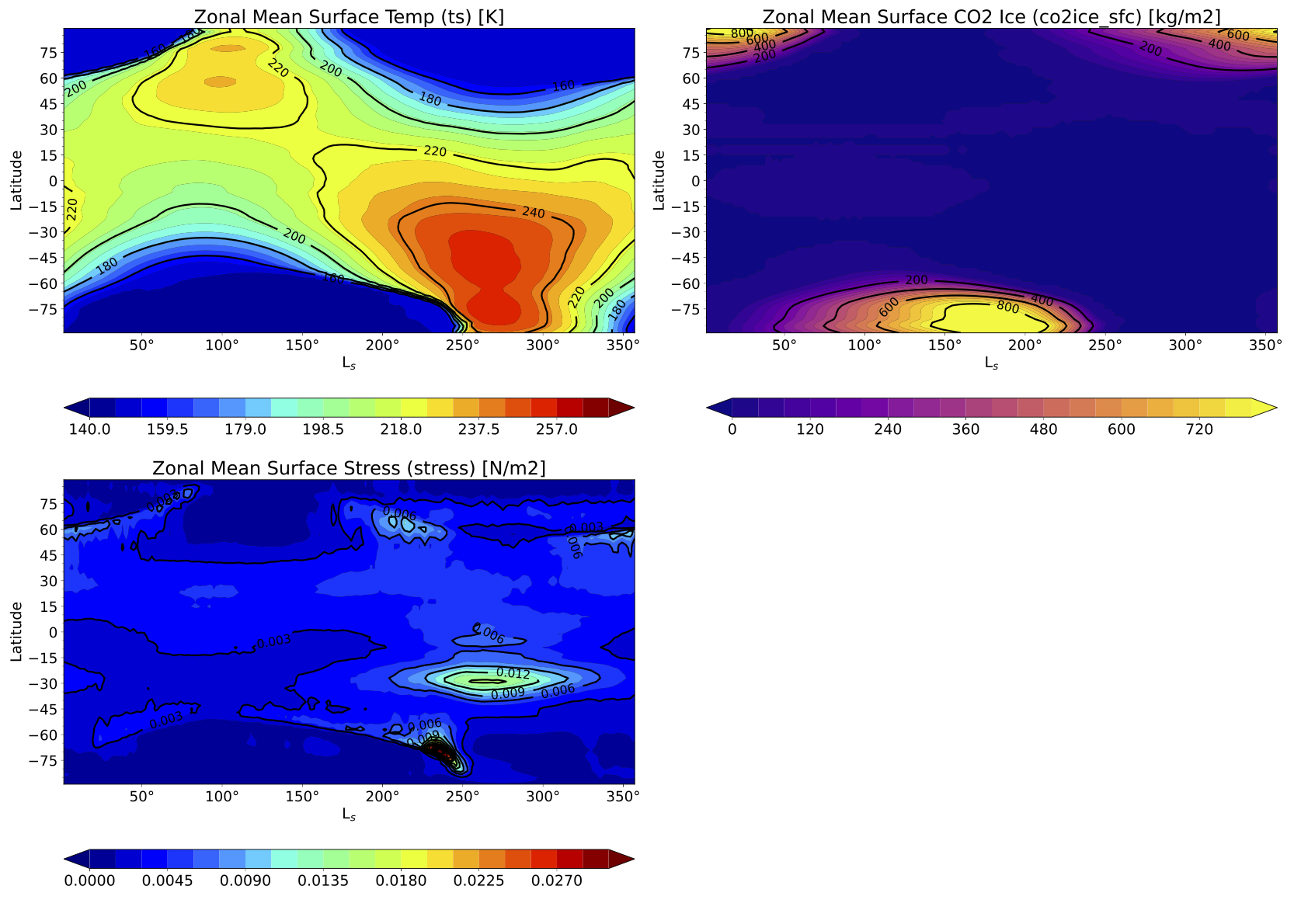
For each of the plots, source variables from the non-interpolated average file, 03340.atmos_average.nc.
For the surface temperature plot:
Copy/paste the
Plot 2D time X lattemplate above theEmpty TemplateslineSet it to
TrueEdit the title to
Zonal Mean Sfc T [K]Set
Main Variable = 03340.atmos_average.tsEdit the colorbar range:
Cmin, Cmax = 140,270→ 140-270 KelvinSet
2nd Variable = 03340.atmos_average.ts→ for overplotted solid contoursExplicitly define the solid contours:
Contours Var 2 = 160,180,200,220,240,260
Let’s pause here and pass the Custom.in file to MarsPlot.
Type ESC-:wq to save and close the file. Then, pass it to MarsPlot:
(amescap)~$ MarsPlot Custom.in
Now, go to your local terminal tab and retrieve the PDF:
(local)~$ getpwd
Now we can open it and view our plot.
Go back to the cloud environment tab to finish generating the other plots on this page. Open Custom.in in vim:
(amescap)~$ vim Custom.in
HOLD ON`` and HOLD OFF arguments around the surface temperature plot. We will paste the other templates within these arguments to tell MarsPlot to put these plots on the same page.
Copy/paste the Plot 2D time X lat template plot twice more. Make sure to set the boolean to True.
For the surface CO2 ice plot:
Set the title to
Zonal Mean Sfc CO2 Ice [kg/m2]Set
Main Variable = 03340.atmos_average.co2ice_sfcEdit the colorbar range:
Cmin, Cmax = 0,800→ 0-800 kg/m2Set
2nd Variable = 03340.atmos_average.co2ice_sfc→ solid contoursExplicitly define the solid contours:
Contours Var 2 = 200,400,600,800Change the colormap on the
Axis Optionsline:cmap = plasma
For the surface wind stress plot:
Set the title to
Zonal Mean Sfc Stress [N/m2]Set
Main Variable = 03340.atmos_average.stressEdit the colorbar range:
Cmin, Cmax = 0,0.03→ 0-0.03 N/m2
Save and quit the editor (ESC-:wq) and pass Custom.in to MarsPlot:
(amescap)~$ MarsPlot Custom.in
Return to Part II: Plotting with CAP
Custom Set 2 of 4: Global Mean Column-Integrated Dust Optical Depth Over Time
Now we’ll generate a 1D plot and practice plotting multiple lines on it.
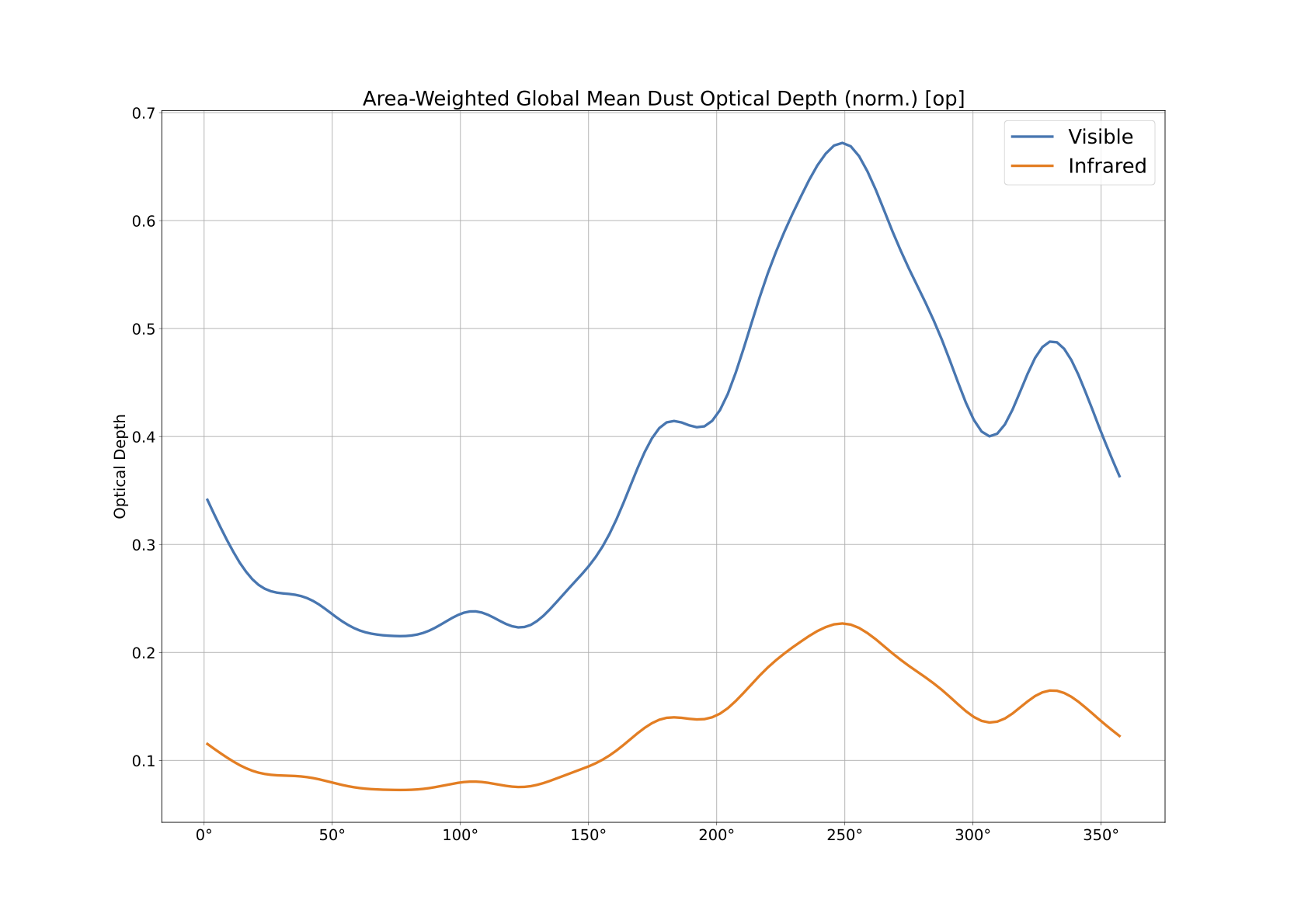
Let’s start by setting up our 1D plot template:
Write a new set of
HOLD ONandHOLD OFFarguments.Copy/paste the
Plot 1Dtemplate between them.Set the template to
True.
Create the visible dust optical depth plot first:
Set the title:
Area-Weighted Global Mean Dust OD (norm.) [op]Edit the legend:
Visible
The input to Main Variable is not so straightforward this time. We want to plot the normalized dust optical depth, which is dervied as follows:
normalized_dust_OD = opacity / surface_pressure * reference_pressure
The MGCM outputs column-integrated visible dust opacity to the variable taudust_VIS, surface pressure is saved as ps, and we’ll use a reference pressure of 610 Pa. Recall that element-wise operations are performed when square brackets [] are placed around the variable in Main Variable. Putting all that together, Main Variable is:
# ┌ norm. OD     ┌ opacity                         ┌ surface pressure       ┌ ref. P
Main Variable  = [03340.atmos_average.taudust_VIS]/[03340.atmos_average.ps]*610
To finish up this plot, tell MarsPlot what to do to the dimensions of taudust_VIS (time, lon, lat):
Leave
Ls 0-360 = AXISto use ‘time’ as the X axis dimension.Set
Latitude = all→ average over all latitudesSet
Lon +/-180 = all→ average over all longitudesSet the Y axis label under
Axis Options:axlabel = Optical Depth
The infrared dust optical depth plot is identical to the visible dust OD plot except for the variable being plotted, so duplicate the visible plot we just created. Make sure both templates are between HOLD ON and HOLD OFF Then, change two things:
Change
Main Variablefromtaudust_VIStotaudust_IRSet the legend to reflect the new variable (
Legend = Infrared)
Save and quit the editor (ESC-:wq). pass Custom.in to MarsPlot:
(amescap)~$ MarsPlot Custom.in
Notice we have two separate 1D plots on the same page. This is because of the HOLD ON and HOLD OFF arguments. Without those, these two plots would be on separate pages. But how do we overplot the lines on top of one another?
Go back to the cloud environment, open Custom.in, and type ADD LINE between the two 1D templates.
Save and quit again, pass it through MarsPlot, and retrieve the PDF locally. Now we have the overplotted lines we were looking for.
Return to Part II: Plotting with CAP
Custom Set 3 of 4: 50 Pa Temperatures at 3 AM and 3 PM
The first two plots are 3 AM and 3 PM 50 Pa temperatures at Ls=270. Below is the 3 PM - 3 AM difference.
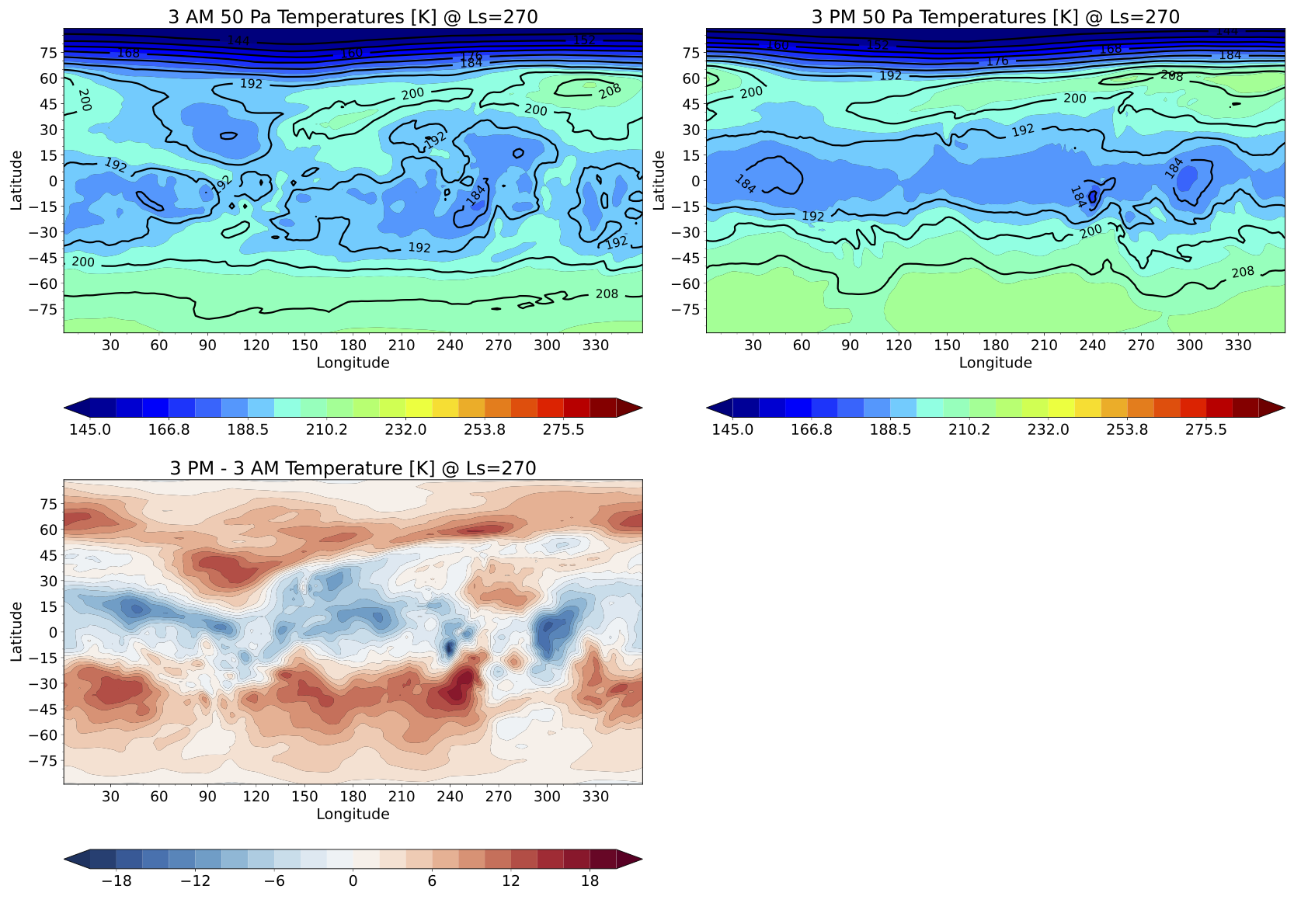
We’ll generate all three plots before passing Custom.in to MarsPlot, so copy/paste the Plot 2D lon X lat template *three times* between a set of HOLD ON and HOLD OFF arguments and set them to True.
For the first plot,
Title it for 3 AM temperatures:
3 AM 50 Pa Temperatures [K] @ Ls=270Set
Main Variabletotempand select 3 AM for the time of day using curly brackets:
Main Variable = 03847.atmos_diurn_Ls265_275_T_pstd.temp{tod=3}
Set the colorbar range:
Cmin, Cmax = 145,290→ 145-290 KSet
Ls 0-360 = 270→ southern summer solsticeSet
Level Pa/m = 50→ selects 50 Pa temperaturesSet
2nd Variableto be identical toMain Variable
Now, edit the second template for 3 PM temperatures the same way. The only differences are the:
Title: edit to reflect 3 PM temperatures
Time of day selection: for 3 PM,
{tod=15}*change this for ``2nd Variable`` too!*
For the difference plot, we will need to use square brackets in the input for Main Variable in order to subtract 3 AM temperatures from 3 PM temperatures. We’ll also use a diverging colorbar to show temperature differences better.
Set the title to
3 PM - 3 AM Temperature [K] @ Ls=270Build
Main Variableby subtracting the 3 AMMain Variableinput from the 3 PMMain variableinput:
Main Variable = [03847.atmos_diurn_Ls265_275_T_pstd.temp{tod=15}]-[03847.atmos_diurn_Ls265_275_T_pstd.temp{tod=3}]
Center the colorbar at
0by settingCmin, Cmax = -20,20Like the first two plots, set
Ls 0-360 = 270→ southern summer solsticeLike the first two plots, set
Level Pa/m = 50→ selects 50 Pa temperaturesSelect a diverging colormap in
Axis Options:cmap = RdBu_r
Save and quit the editor (ESC-:wq). pass Custom.in to MarsPlot, and pull it to your local computer:
(amescap)~$ MarsPlot Custom.in
Return to Part II: Plotting with CAP
Custom Set 4 of 4: Zonal Mean Circulation Cross-Sections
For our final set of plots, we will generate four cross-section plots showing temperature, zonal (U) and meridional (V) winds, and mass streamfunction at Ls=270.
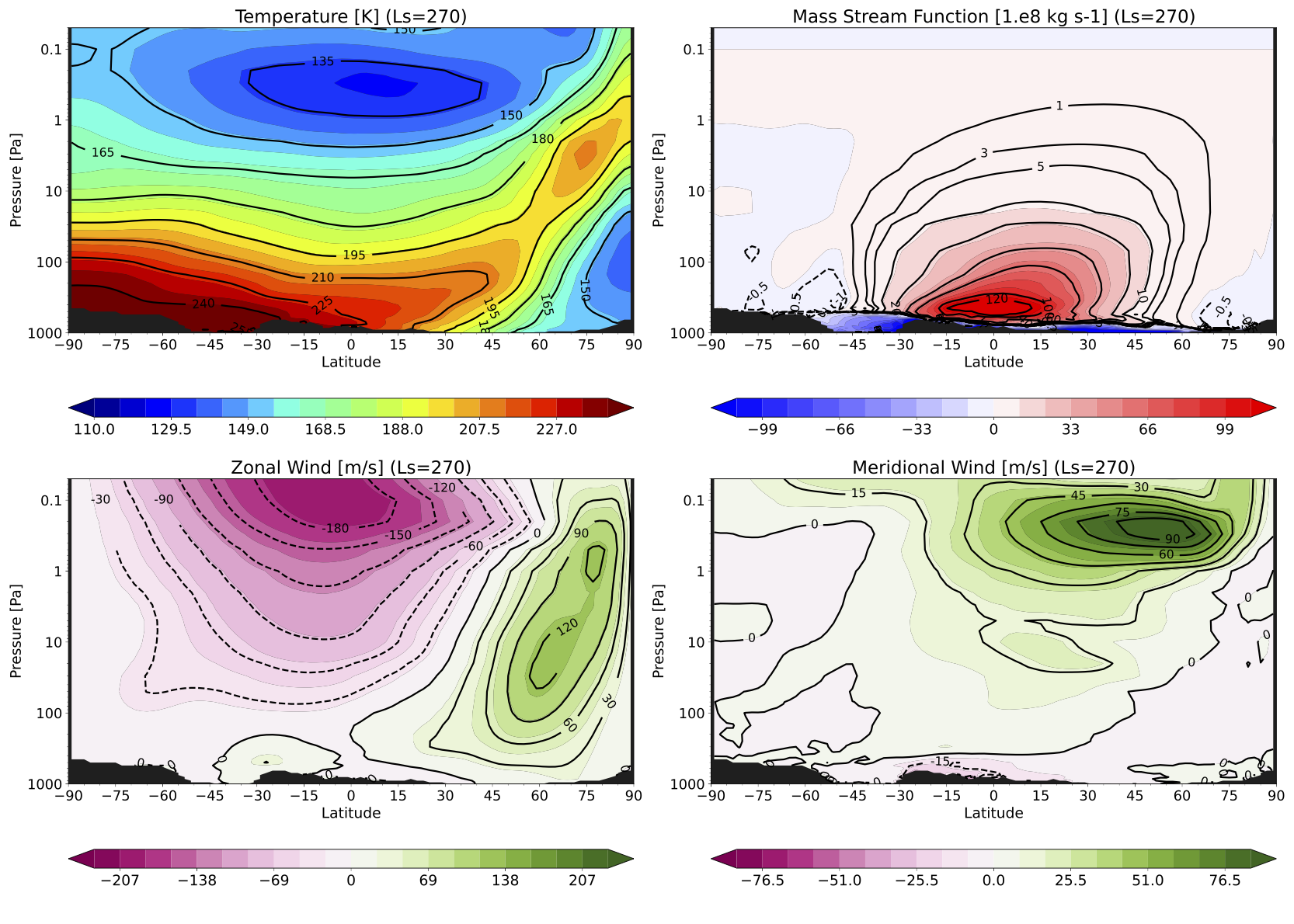
Begin with the usual 3-step process:
Write a set of
HOLD ONandHOLD OFFargumentsCopy-paste the
Plot 2D lat X levtemplate between themSet the template to
True
Since all four plots are going to have the same X and Y axis ranges and time selection, let’s edit this template before copying it three more times:
Set
Ls 0-360 = 270In
Axis Options, setLat = [-90,90]In
Axis Options, setlevel[Pa/m] = [1000,0.05]
Now copy/paste this template three more times. Let the first plot be temperature, the second be mass streamfunction, the third be zonal wind, and the fourth be meridional wind.
For temperature:
Title          = Temperature [K] (Ls=270)
Main Variable  = 03847.atmos_average_Ls265_275_pstd.temp
Cmin, Cmax     = 110,240
...
2nd Variable   = 03847.atmos_average_Ls265_275_pstd.temp
For streamfunction, define explicit solid contours under Contours Var 2 and set a diverging colormap.
Title          = Mass Stream Function [1.e8 kg s-1] (Ls=270)
Main Variable  = 03847.atmos_average_Ls265_275_pstd.msf
Cmin, Cmax     = -110,110
...
2nd Variable   = 03847.atmos_average_Ls265_275_pstd.msf
Contours Var 2 = -5,-3,-1,-0.5,1,3,5,10,20,40,60,100,120
# set cmap = bwr in Axis Options
For zonal and meridional wind, use the dual-toned colormap PiYG.
Title          = Zonal Wind [m/s] (Ls=270)
Main Variable  = 03847.atmos_average_Ls265_275_pstd.ucomp
Cmin, Cmax     = -230,230
...
2nd Variable   = 03847.atmos_average_Ls265_275_pstd.ucomp
# set cmap = PiYG in Axis Options
Title          = Meridional Wind [m/s] (Ls=270)
Main Variable  = 03847.atmos_average_Ls265_275_pstd.vcomp
Cmin, Cmax     = -85,85
...
2nd Variable   = 03847.atmos_average_Ls265_275_pstd.vcomp
# set cmap = PiYG in Axis Options
Save and quit the editor (ESC-:wq). pass Custom.in to MarsPlot, and pull it to your local computer:
(amescap)~$ MarsPlot Custom.in
Return to Part II: Plotting with CAP
End Credits
This concludes the practical exercise portion of the CAP tutorial. Please feel free to use these exercises as a reference when using CAP the future!
Written by Courtney Batterson, Alex Kling, and Victoria Hartwick. This document was created for the NASA Ames MGCM and CAP Tutorial held virtually November 13-15, 2023.
Questions, comments, or general feedback? `Contact us <https://forms.gle/2VGnVRrvHDzoL6Y47>`_.
Return to Table of Contents